Shared files and folders
All members see the same structure, so there is one version of where things live.
Learn more →
Keep each business or team in its own private space, with its own files, members and storage, and move between them from a single login.
Get started free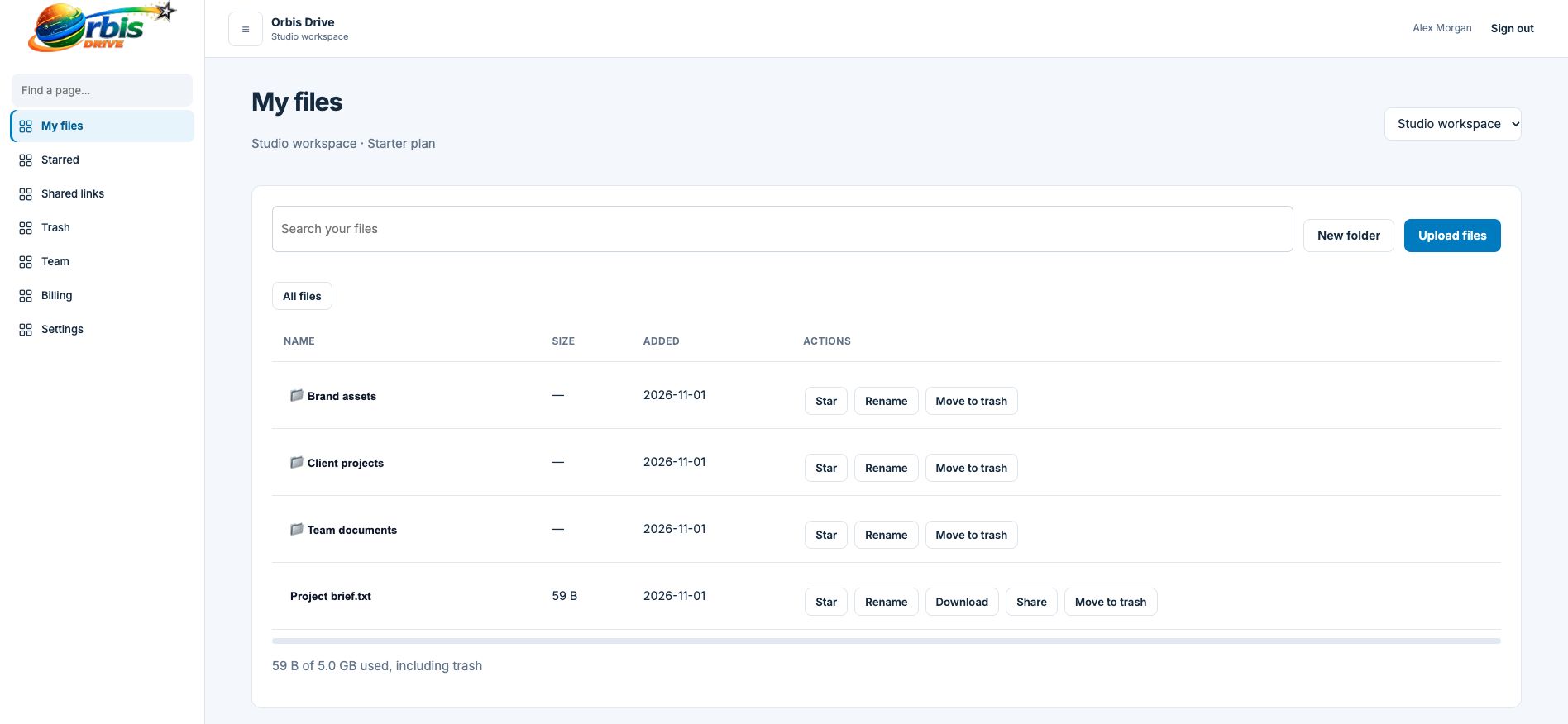


















A workspace is the home for a team's files. It has its own folders, its own members, its own storage plan and its own sharing links. Nothing crosses from one workspace to another, so it is the boundary you can rely on.
Each person has one login, and that login can belong to more than one workspace. An accountant serving several clients, or an owner running two businesses, can switch between them without signing out or juggling passwords.
All members see the same structure, so there is one version of where things live.
Learn more →Owners invite specific email addresses using a private link valid for seven days.
Learn more →Owners manage members, settings and billing. Members work with files.
Learn more →See usage against your plan, shared by everyone with no per-person charge.
Learn more →One list shows what has been shared from this workspace, ready to revoke.
Learn more →If you belong to more than one, switch between them from the top of the page.
Learn more →| Action | Owner | Member |
|---|---|---|
| View, upload and download files | ✓ | ✓ |
| Create folders, rename, star and delete | ✓ | ✓ |
| Restore from Trash | ✓ | ✓ |
| Create and revoke sharing links | ✓ | ✓ |
| Invite and remove members | ✓ | — |
| Rename the workspace | ✓ | — |
| Choose a plan and manage billing | ✓ | — |
Register and give it a name your team will recognise.
A few clear folders are far better than dozens of vague ones.
Enter each person's email address on the Team page and send them the link.
Remove people who no longer need access as part of your leaver process.
Yes. Accept invitations with the same email address and use the switcher to move between them.
No. Each has its own plan and allowance, and billing is separate.
Contact support and we will help you with this.
They immediately lose access to the workspace. Files they uploaded stay in the workspace.
Workspace owners create an invitation for a specific email address, then send that person the private link. Only that address can accept it.
Learn more →Two simple roles, owner and member, mean everybody knows who can do what, and removing access takes a single action.
Learn more →Give everyone the same files wherever they work, with no VPN, no office server and no "can you send me that?" messages.
Learn more →